
By Sheraz Khan
An event QR code puts a calendar event inside a square code that any phone camera can read. When someone scans it, their phone offers to add the event to the calendar, with the title, date, time and place already filled in. They only have to press save. It is the fastest way to turn a printed invite, a poster or a ticket into a saved date.
This free event QR code generator makes a code in seconds. Type the event name, the date and time, and the place, then download the code as a PNG or SVG. There is no sign-up, no watermark and no expiry date. The code is static, so the event stays inside the code for good, and it works for as long as people keep the code.
Use it on a wedding invitation so guests save the date without typing it, on a concert poster so fans add the show to their calendar, on a conference badge so attendees keep the schedule, or on a shop sign so customers remember a sale. One scan is all it takes to save the date.
Scan this and it opens the website link.
Example: https://example.com
Scan this and it shows your text on the phone.
Example: Welcome to our cafe
Scan this and your phone joins the WiFi, no typing the password.
Example: Network: MyHomeWiFi, Password: hello123
Scan this and your contact saves to the phone.
Example: Sarah Jones, Bloom Bakery, +1 555 123 4567, sarah@bloombakery.com
Scan this and a chat opens with your message ready.
Example: +1 555 123 4567, Message: Hi, I want to order
Scan this and it opens a new email to your address.
Example: hello@example.com, Subject: Hello
Scan this and it calls the number.
Example: +1 555 123 4567
Scan this and it opens a text message to the number.
Example: +1 555 123 4567, Message: Hi there
Scan this and it opens the place on a map.
Example: 1600 Amphitheatre Parkway, Mountain View
Scan this and it saves the event to the calendar.
Example: Birthday Party, 25 Dec 2026, 6 PM
Scan this and it opens a Bitcoin payment with the amount ready.
Example: 1A1zP1eP5QGefi2DMPTfTL5SLmv7DivfNa
Scan this and it opens the payment link.
Paste your payment link. A plain number on its own will not open inside a bank app. For payments inside a bank app, use the QR code your own bank app gives you.
Example: https://example.com/pay
Example
How to Use the Free Event QR Code Generator
Put an event on a calendar in one scan. The code saves the event name, date and start time, so guests never forget it.
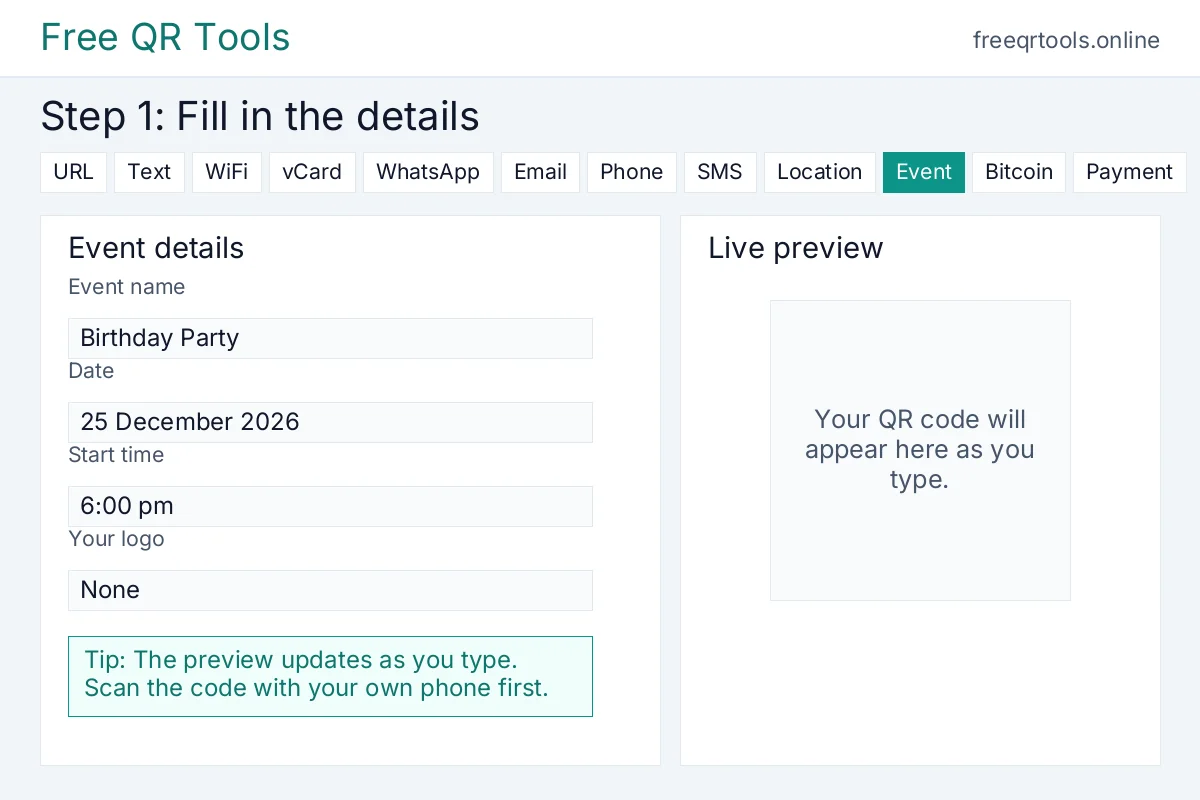
- You are on the Event tab already. If you are not, click the Event tab at the top of the tool.
- Type the event name in the box called Event name, for example Birthday Party.
- Pick the start date and time in the box called Start date and time.
- Add an end date and time if you want one in the box called End date and time. You can leave it empty.
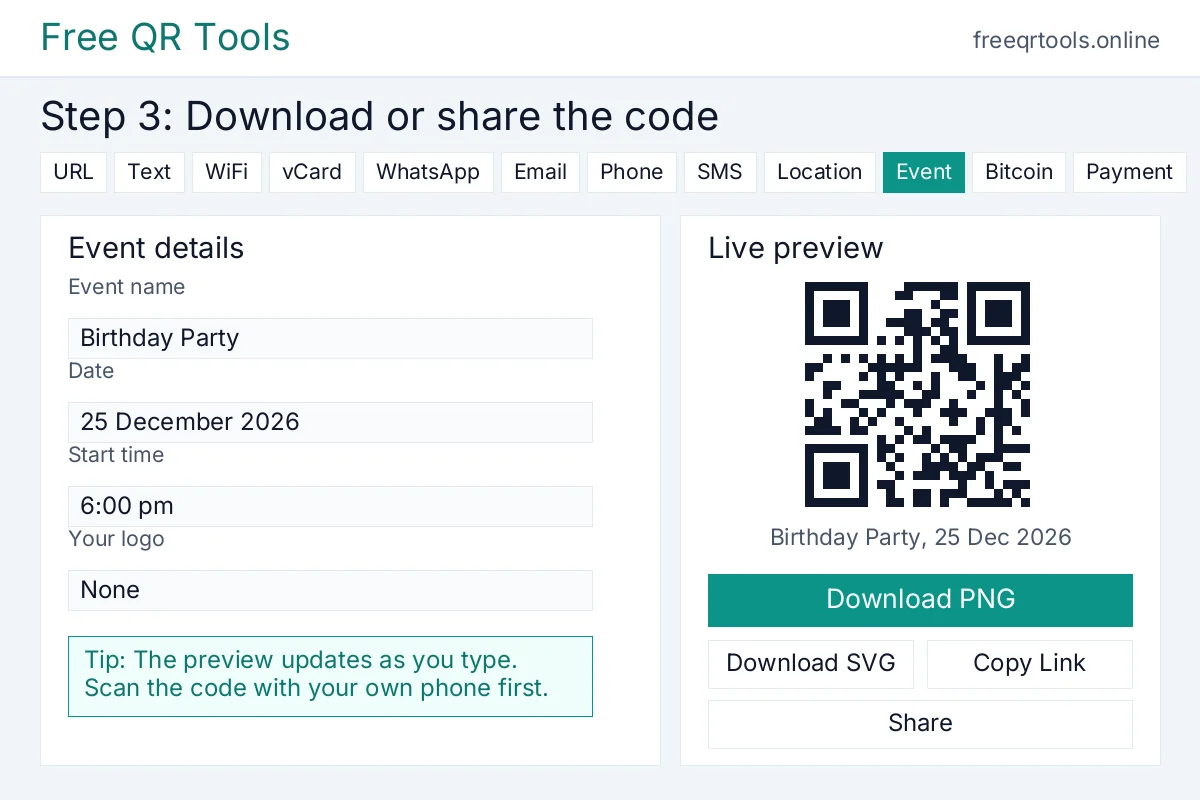
- Download the code. The preview updates by itself as you type. When it looks right, click Download PNG or Download SVG.
Worked example
Try it with these details:
- Event name: Birthday Party
- Date: 25 December 2026
- Start time: 6:00 pm
Example event QR code for the Birthday Party on 25 December 2026
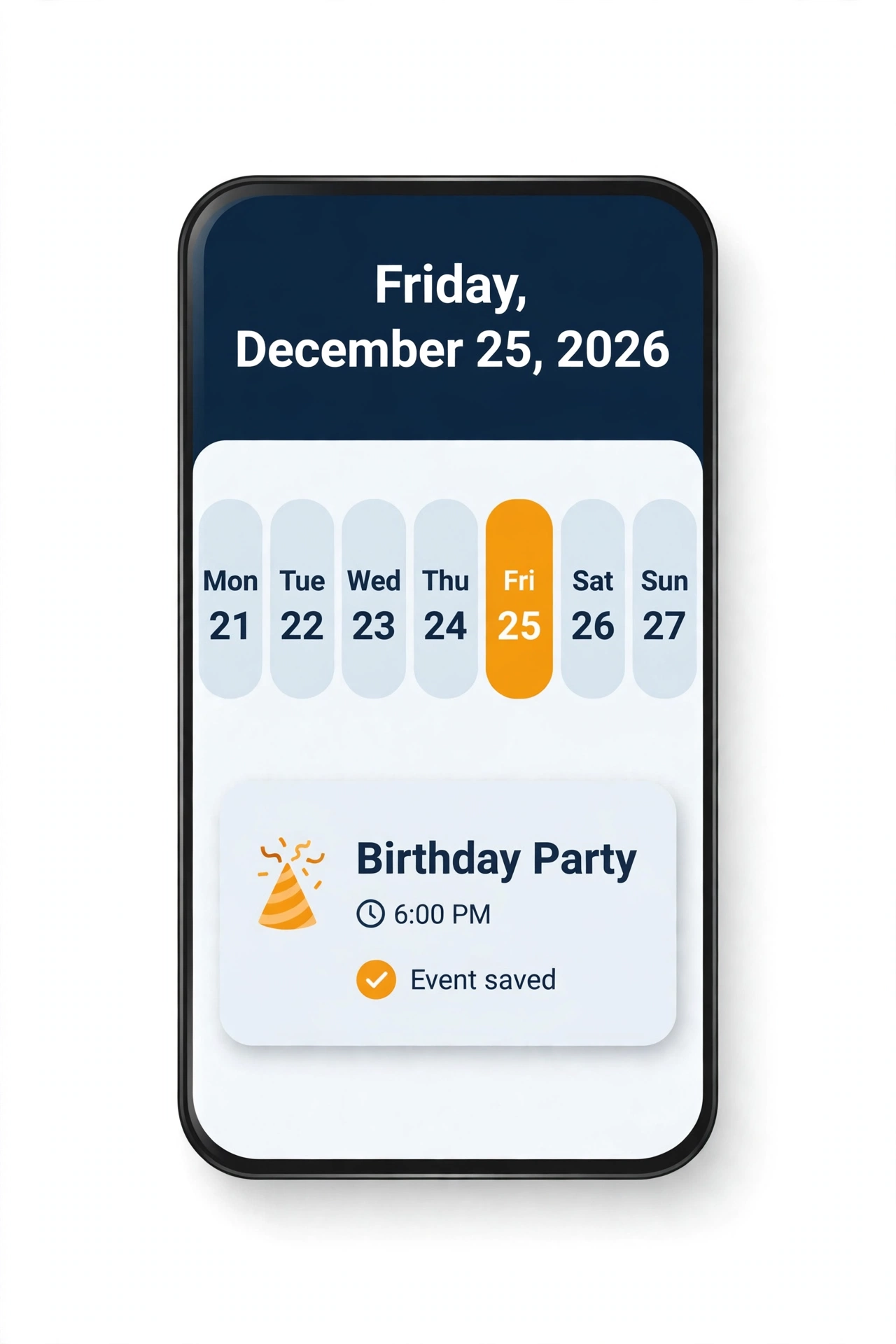
Result: Scan the code and the Birthday Party event, on 25 December 2026 at 6:00 pm, is added to the calendar.
How it will look:
See the steps
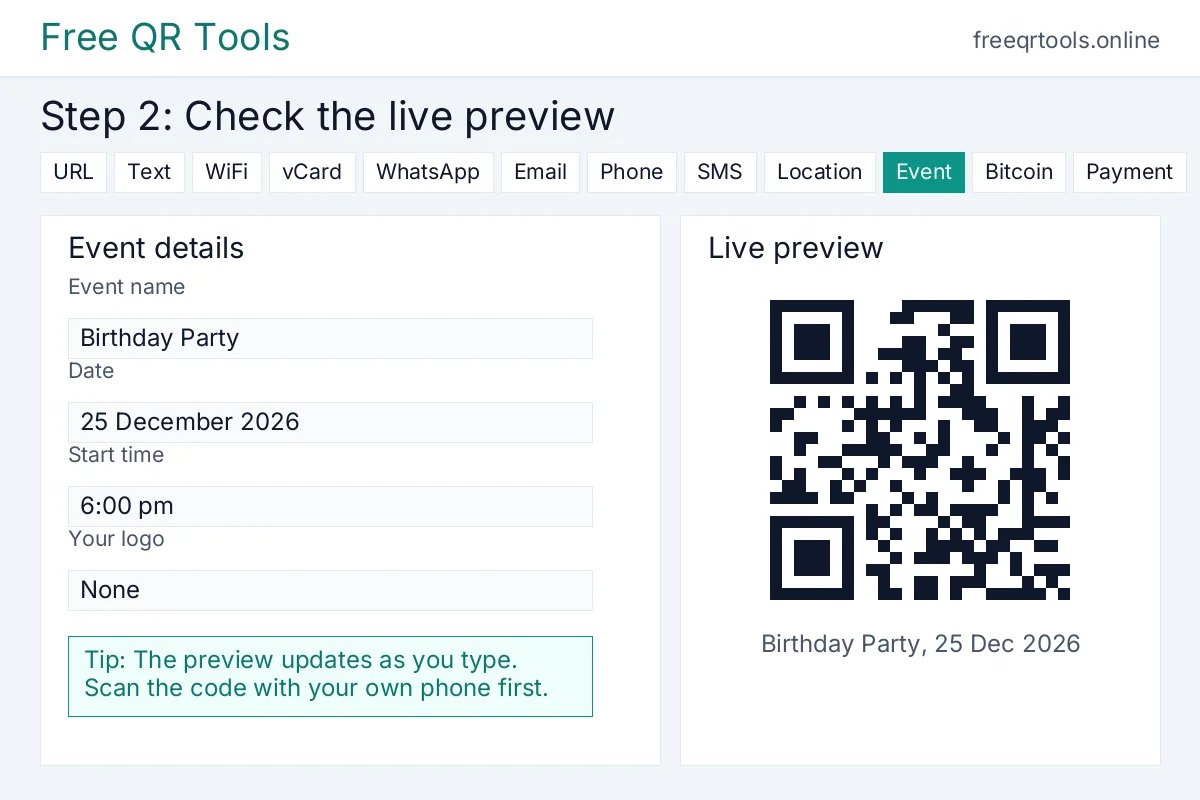
What the code holds: BEGIN:VEVENT
SUMMARY:Birthday Party
DTSTART:20261225T180000
END:VEVENT
How to make an event QR code
Follow these steps to make your first code. It takes less than a minute.
- Open the tool above. The Event tab is already picked for you.
- Type the event name in the box called Event name, for example Birthday Party.
- Pick the date and time in the boxes called Start and End. Use the date picker so the format is right.
- Type the place in the box called Location, for example My House, if the event has a venue.
- Check the live preview on the right. It updates by itself as you type, so you can see the code change in real time.
- Pick a download size. 512 pixels is right for most screens. Pick 1024 pixels or the SVG download for print.
- Pick an error correction level. Medium is the normal choice and works for most codes. Pick High if the code will be small or printed on rough paper.
- Download the code as a PNG for screens and print, or as an SVG for sharp, large prints. You can also copy the link or share the code straight from the tool.
Worked example
Here is a real example made with the tool above.
Event name: Birthday Party
Date and time: 25 December 2026, 6:00 pm
Location: My House
Result: You get a QR code that offers to add a calendar event called Birthday Party on 25 December 2026 at 6:00 pm at My House.
What the code holds: BEGIN:VEVENT with SUMMARY:Birthday Party and DTSTART:20261225T180000 and END:VEVENT
Try it yourself. Type the same event name and date and you will see the same code appear in the preview above.
Why use an event QR code?
Typing a date and time by hand is slow and easy to get wrong. One wrong digit saves the event on the wrong day. An event QR code removes that risk. The whole event travels inside the code, so the calendar opens with the right date, time and place every time.
An event QR code also makes people far more likely to actually come. The step from reading to saving is a single scan and one tap, not a search for a date and a careful retype. For a wedding, a concert, a class or a sale, that small push turns readers into guests.
An event QR code works where a date cannot be tapped. Print cannot be tapped, but it can be scanned. That is why QR codes sit on invitations, posters, tickets, badges and shop signs. A printed date is dead text. A printed event QR code saves the date in one scan.
The code is free and private. This generator makes the code in your browser, so your event is never sent to our server and never stored. We do not ask for your email and we do not put a watermark on the code. The code is static, so it never expires and never stops working.
Where to use an event QR code
Put an event QR code on a wedding invitation so guests save the date without typing it. Put it on a birthday card so friends add the party to their calendar. Put it on a concert poster so fans save the show at once. Put it on a conference badge so attendees keep the talks and the breaks.
Shops can put one on a sign so customers save a sale or a launch. Schools can put one on a notice so parents save a parents evening or a sports day. Churches and mosques can put one on a board so the congregation saves a service or a fundraiser. Clubs can put one on a flyer so members save a match or a meeting.
Restaurants can put one on a table so diners save a tasting night. Cinemas can put one on a poster so moviegoers save a premiere. Charities can put one on a leaflet so supporters save a gala. Wherever you print a date, an event QR code makes people far more likely to actually turn up.
For other one-scan actions, try the location QR code generator to share the venue, the link QR code generator for a booking page, and the phone QR code generator to start a call. Our guide on how to create a QR code for free shows the same steps for any code type.
How to print and share your event QR code
Download the code at 1024 pixels or as an SVG for print, because a bigger file stays sharp. Print it at least 2 centimetres wide for close use, like a card, and larger for posters or signs that people scan from a distance. A code should be at least one tenth as wide as the distance people will scan it from.
Use dark code on a light background for the best contrast, and leave a quiet zone of plain space around the code, at least four modules wide on each side. Do not print a code on a busy pattern or over a photo, and do not stretch it. If the code looks squashed or faded, scanners will struggle.
Always test before you print a big run. Print one copy, open your phone camera, point it at the code and check that it offers to add the event with the right title, date, time and place. If it opens correctly on your phone, it will open correctly on others.
Common mistakes to avoid
Do not use the wrong date or time. A static code cannot be edited after you print it, so check the date, the time and the time zone twice before you download the code. If the event might move, use a link to a page you can update, or print a new code.
Do not leave the place out. An event with no place is easy to forget, even when the date is saved. Add the full venue name and, if it helps, the address too, so guests can find it. Do not make the code too small for its distance, and do not forget a short caption, such as Save the date.
And do not skip the test scan. A code that was never tested can fail on a guest’s phone and cost you an attendee. Test the printed code, not only the version on your screen.
FAQs
Is this event QR code generator free?
Yes, every event code is free. Make one for the wedding, one for the party, and one for each poster, with no account, no watermark, and no limit on how many you make.
Does an event QR code expire?
No. The event is tucked inside the code, so it keeps offering the date for as long as someone still has it, even after the day has passed. If the date moves, print a new code with the new date.
Will it work on iPhone and Android?
Yes, on both. On an iPhone, the camera shows a calendar prompt after a tap. On Android, the camera or Google Lens opens the same add to calendar prompt with no extra app.
Can I change the date after I print the code?
No. A static code holds the event inside it, so it cannot be edited after printing. If the date might change, use a link to a page you can update or print a new code. Our guide on static vs dynamic QR codes explains the difference.
Does it add the event to Google Calendar or Apple Calendar?
It adds the event to whichever calendar app the reader uses. Most phones offer Google Calendar on Android and Apple Calendar on iPhone, and the code works with both.
What size should I download?
Pick the file for the print. A 512 pixel PNG is right for cards and screens. For posters and windows, take the SVG or the 1024 pixel PNG so the date still scans from a few steps away.
Can I add my logo to an event QR code?
Yes. Add your mark in the middle through the logo upload above, or build the branded version in our logo QR code generator. Keep it small and set error correction to High so the date still saves.