
By Sheraz Khan
Let anyone email you without typing your address. An email QR code turns an email address and a ready message into a code that, when scanned, opens the phone’s email app with the message already drafted. It is the simplest way to collect enquiries, bookings, feedback or orders by email, and it works on business cards, menus, packaging, invoices, posters and shop windows.
Our free email QR code generator makes a code in seconds. Type the address, add a subject and a short message, then download the code as a PNG or SVG. There is no sign-up, no watermark and no expiry date. The code is static, so it keeps working for as long as the email address stays in use, and the message in it never changes.
Use it for any inbox. A sales inbox, a bookings inbox, a support inbox, a feedback address or your personal email. If the address is long or hard to spell, a QR code saves your customer from a typo and saves you from a missed email.
Scan this and it opens the website link.
Example: https://example.com
Scan this and it shows your text on the phone.
Example: Welcome to our cafe
Scan this and your phone joins the WiFi, no typing the password.
Example: Network: MyHomeWiFi, Password: hello123
Scan this and your contact saves to the phone.
Example: Sarah Jones, Bloom Bakery, +1 555 123 4567, sarah@bloombakery.com
Scan this and a chat opens with your message ready.
Example: +1 555 123 4567, Message: Hi, I want to order
Scan this and it opens a new email to your address.
Example: hello@example.com, Subject: Hello
Scan this and it calls the number.
Example: +1 555 123 4567
Scan this and it opens a text message to the number.
Example: +1 555 123 4567, Message: Hi there
Scan this and it opens the place on a map.
Example: 1600 Amphitheatre Parkway, Mountain View
Scan this and it saves the event to the calendar.
Example: Birthday Party, 25 Dec 2026, 6 PM
Scan this and it opens a Bitcoin payment with the amount ready.
Example: 1A1zP1eP5QGefi2DMPTfTL5SLmv7DivfNa
Scan this and it opens the payment link.
Paste your payment link. A plain number on its own will not open inside a bank app. For payments inside a bank app, use the QR code your own bank app gives you.
Example: https://example.com/pay
Example
How to Use the Free Email QR Code Generator
Let people email you in one scan. The code opens a new email, already addressed to you, with the subject filled in.
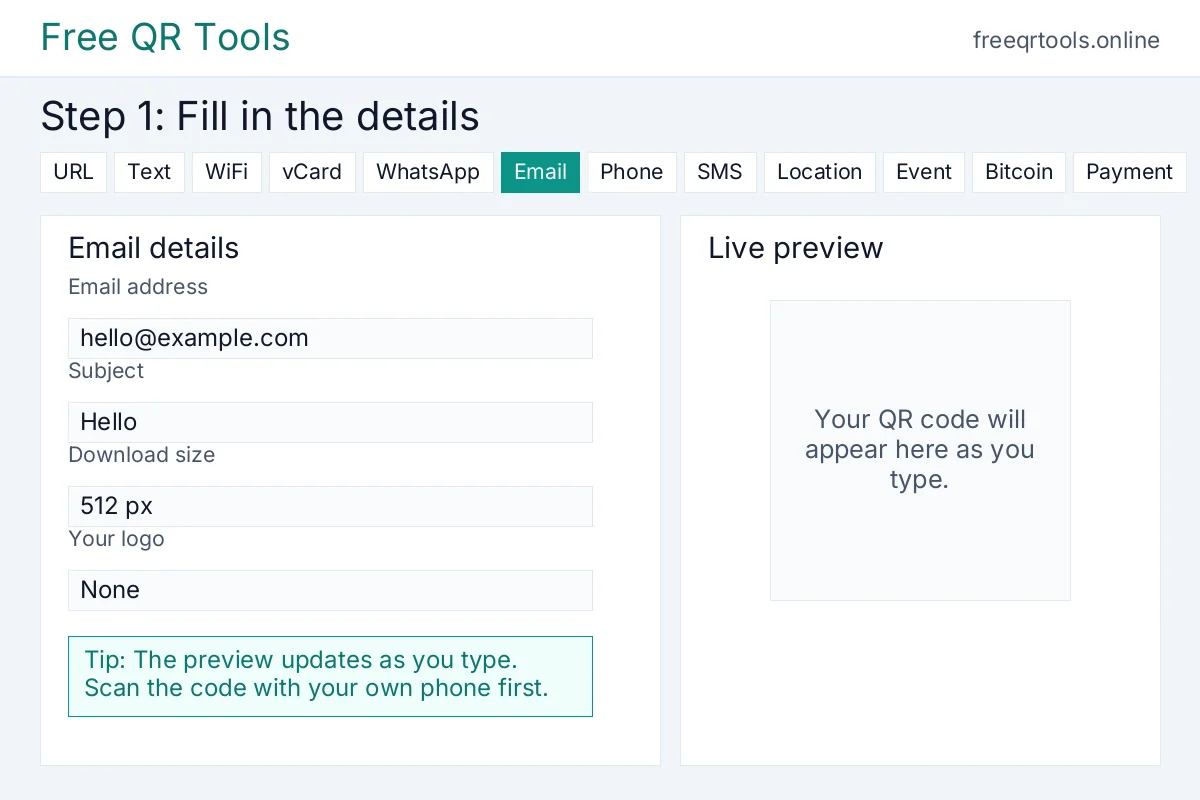
- You are on the Email tab already. If you are not, click the Email tab at the top of the tool.
- Type the email address in the box called Email address.
- Add a subject in the box called Subject, so the reader knows what the email is about.
- Add a message if you want one in the box called Message. You can leave it empty.
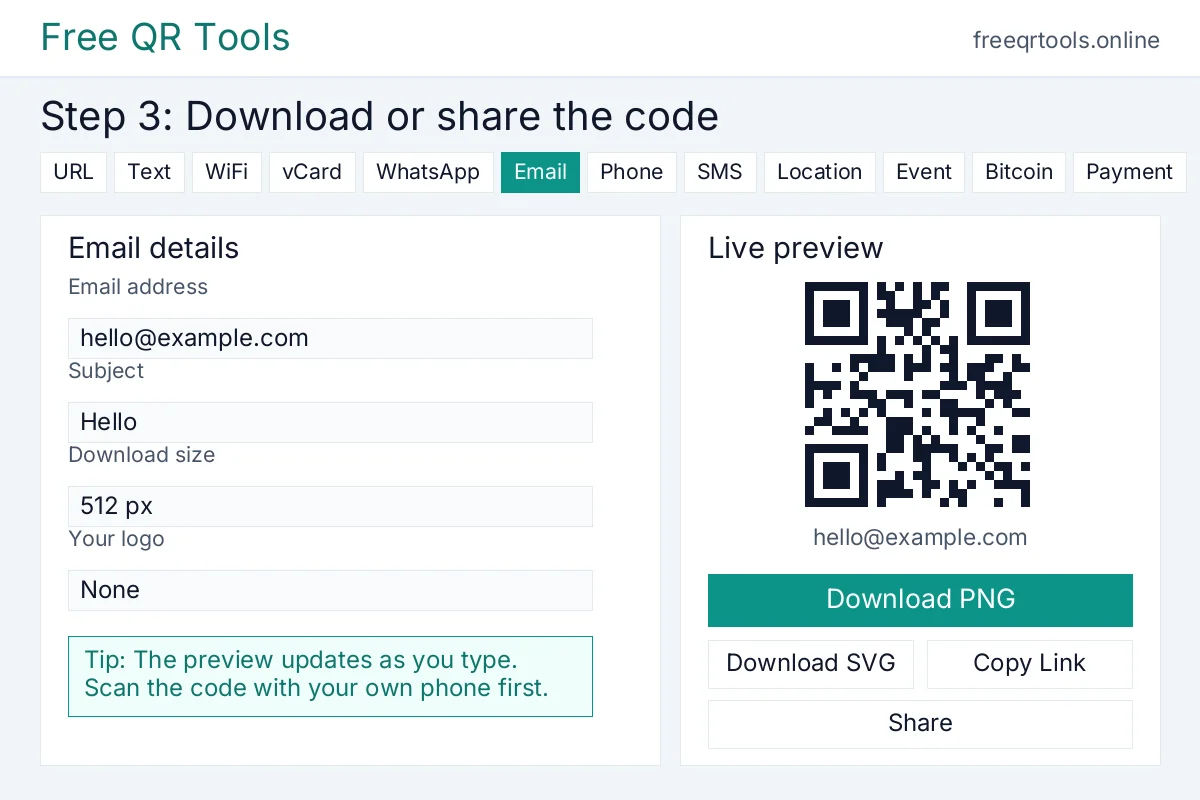
- Download the code. The preview updates by itself as you type. When it looks right, click Download PNG or Download SVG.
Worked example
Try it with these details:
- Email address: hello@example.com
- Subject: Hello
Example email QR code for hello@example.com
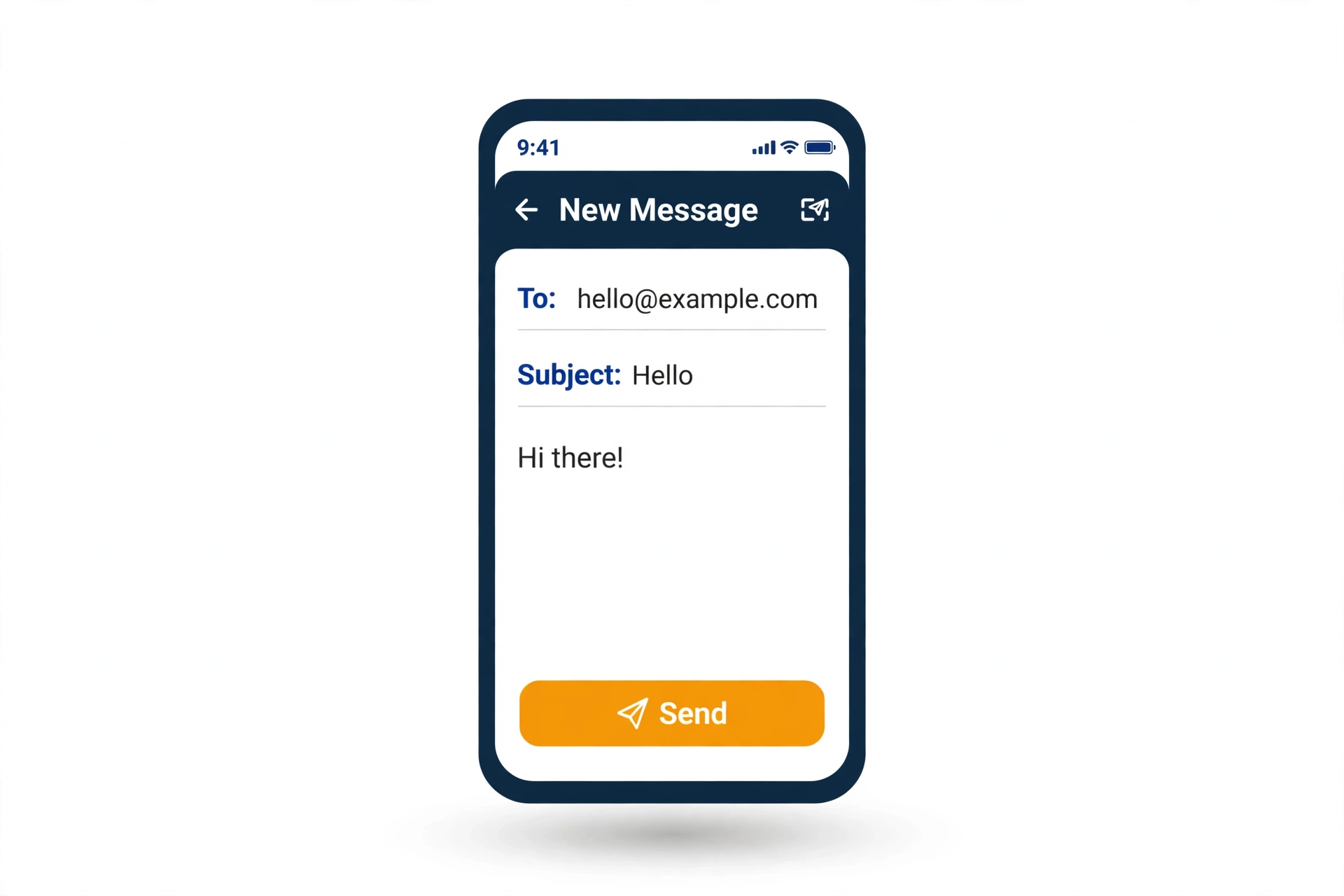
Result: Scan the code and a new email opens, addressed to hello@example.com, with the subject Hello already filled in.
How it will look:
See the steps
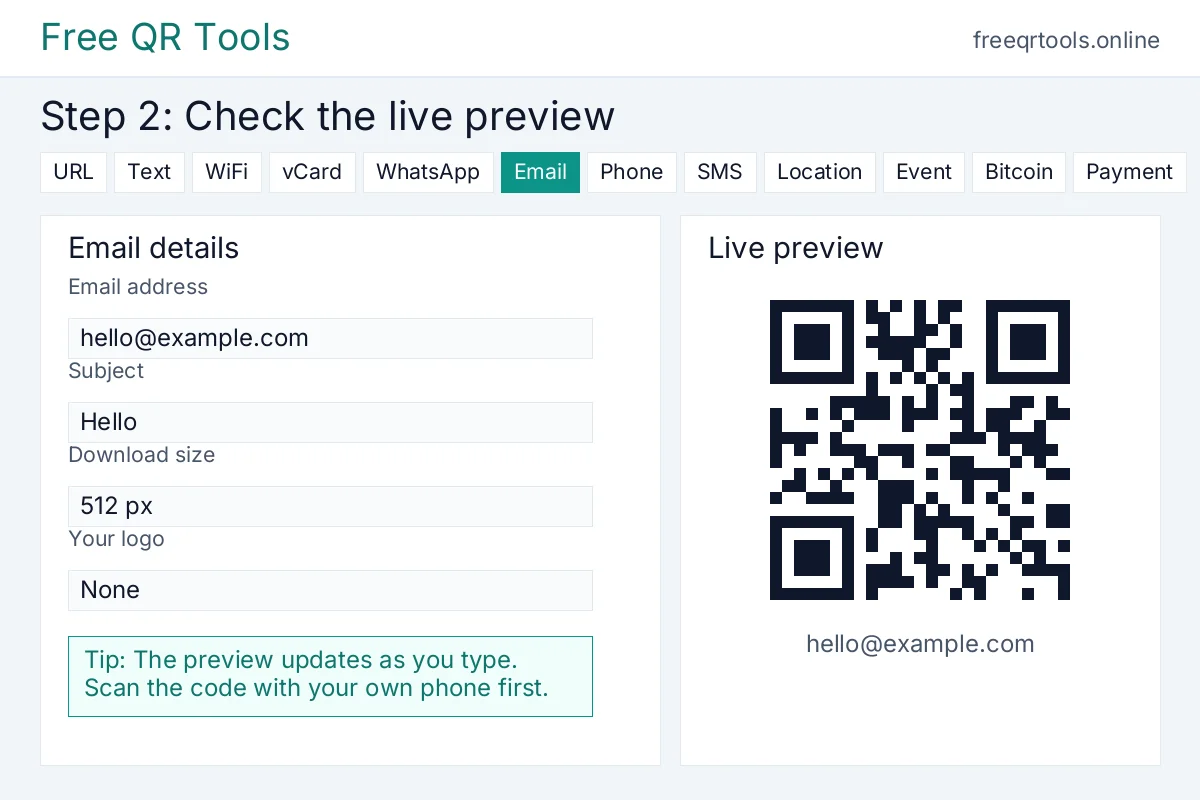
What the code holds: mailto:hello@example.com?subject=Hello
How to make an email QR code
Follow these steps to make your first code. It takes less than a minute.
- Open the tool above. The Email tab is already picked for you.
- Type the email address in the box called Email address. For example, write hello@example.com. That is the address the scan will write to.
- Add a subject line, such as Hello or Booking enquiry. It will appear in the subject of the email after the scan.
- Type a short message, such as Hi, I would like to book a table. It appears in the body of the email, ready to send.
- Download the code as a PNG for screens and print, or as an SVG for sharp, large prints. You can also copy the link or share the code straight from the tool.
Worked example
Here is a real example made with the tool above.
Email address: hello@example.com
Subject: Hello
Result: You get a QR code that opens a new email to hello@example.com with the subject Hello when someone scans it with a phone camera.
What the code holds: mailto:hello@example.com?subject=Hello
Try it yourself. Type the same details and you will see the same code appear in the preview above.
Why use an email QR code?
Typing an email address is slow and error prone. One wrong letter sends the message to the wrong inbox or nowhere at all. An email QR code removes that risk. The whole address is stored inside the code, so the scanner lands on the exact address you chose. It is faster, it avoids typos and it feels modern.
A code also works where a link cannot be clicked. Print cannot be tapped, but it can be scanned. That is why QR codes are everywhere on posters, menus, packaging and tickets. A printed email address is dead text. A printed QR code is a working shortcut.
An email QR code is free and private. This generator makes the code in your browser, so your address is never sent to our server and never stored. We do not ask for your email and we do not put a watermark on the code. The code is yours, and because it is static, it never expires.
A code also looks tidy. A long address with numbers and dots looks messy on a card or a poster. A small square code takes little space and looks clean. You can add a short line under it, such as Scan to email us, so people know what they get before they scan.
Where to use an email QR code
Put an email QR code on a business card so people can email you without typing your address. Put it on a flyer or poster so a passer-by can ask a question with one scan. Put it on product packaging so a buyer can ask for help, leave feedback or order a refill.
Shops can put one in the window so customers can ask about stock. Estate agents can put one on a for sale board so buyers can ask for a viewing. Teachers can put one on a handout so students can ask questions by email. Event organisers can put one on a ticket or a badge so visitors can send feedback.
You can also put one on an invoice so a customer can query a charge, or on a gift card so the recipient can ask for help. Anywhere a printed email address would help, an email QR code helps more, because people scan it instead of typing.
How to print and share your email QR code
Download the code at 1024 pixels or as an SVG for print, because a bigger file stays sharp. Print it at least 2 centimetres wide for close use, like a business card, and larger for posters or signs that people scan from a distance. A code should be at least one tenth as wide as the distance people will scan it from.
Use dark code on a light background for the best contrast, and leave a quiet zone of plain space around the code, at least four modules wide on each side. Do not print a code on a busy pattern or over a photo, and do not stretch it. If the code looks squashed or faded, scanners will struggle.
Always test before you print a big run. Print one copy, open your phone camera, point it at the code and check that it opens the mail app with the right address, subject and message. Test on iPhone and Android if you can, and test in normal light. If it works on your phone, it will work on others.
Common mistakes to avoid
Do not use a fake or old email address in a code that you will print in many places, because anyone who scans it will write to that inbox. Do not use a long subject or message, because it makes the code denser and harder to scan. Keep the message short and clear, such as Hello, I would like to book a table.
Do not forget the caption. People are far more likely to scan a code when a short line tells them what they get, such as Scan to email us. Do not hide the code behind a logo that is too large. Keep the logo small, in the middle, and use a high error correction level so the code still reads.
Finally, do not skip the test scan. A code that was never tested can fail on a customer’s phone and cost you a question, a booking or a sale. Test the printed code, not only the version on your screen.
FAQs
Is this email QR code generator free?
Yes, and it stays that way. Make one email code or a new one for every member of your team, with no account, no watermark, and no limit to count.
Does an email QR code expire?
No. The address and message sit inside the code itself, so it keeps drafting that email for as long as the inbox is live. If you shut the inbox down or change its address, print a new code.
Can I change the address after I print the code?
No. A static code holds the address inside it, so it cannot be edited after printing. If the address might change, use an email alias or a group inbox that you control, or print a new code.
Will it work on iPhone and Android?
Yes, on both. An iPhone camera shows the draft message after a tap, and on Android the camera or Google Lens opens the same ready message with nothing extra to install.
What size should I download?
Choose for its home. A 512 pixel PNG is plenty for screens, signatures, and invoices. For a poster or a shop window, take the SVG or the 1024 pixel PNG so the edges stay clean at any size.
Can I add my logo to an email QR code?
Yes. Layer your mark on top with the logo upload above, or make a branded version in our logo QR code generator. Keep it small and centred and set error correction to High so the code still reads around it.